Create Custom External Data Definitions and Append Them to Existing Datasets
Most organizations already have valuable internal data: customer records, prospect lists, vendor files, company names, account lists, product references, market research files, operational datasets, and more.
The challenge is that internal data often becomes far more valuable when it is combined with the right external intelligence. That external intelligence might be company websites, headquarters locations, market data, executive information, descriptions, classification data, competitive details, risk indicators, research summaries, or any other data points that matter to a specific business process.
Interzoid's Custom Data Wizard and Data Enrichment Wizard make this possible in a simple workflow: describe the data you want, define the output fields, test the results interactively, save the configuration, and append those custom fields to an existing CSV or TSV dataset.
Explore the Custom Data Wizard | Launch the Data Enrichment Wizard | Get an API Key
From Fixed APIs to Custom Data Definitions
Interzoid provides a broad catalog of ready-to-use data APIs for common use cases such as company intelligence, name matching, address matching, organization standardization, email trust scoring, parent company lookup, and other enrichment functions.
Those APIs are powerful when the desired data fits a predefined function. But many business needs are more specific. A sales team may want a specialized company profile. A research team may need custom attributes about public companies. A marketing team may want industry-specific signals. A data team may need a custom set of fields that does not exist as a standard endpoint.
The Custom Data Wizard is designed for these situations. Instead of forcing your use case into a fixed data structure, it lets you describe the external data you want and define the exact output fields you want returned.
The Basic Idea: Describe, Test, Save, Enrich
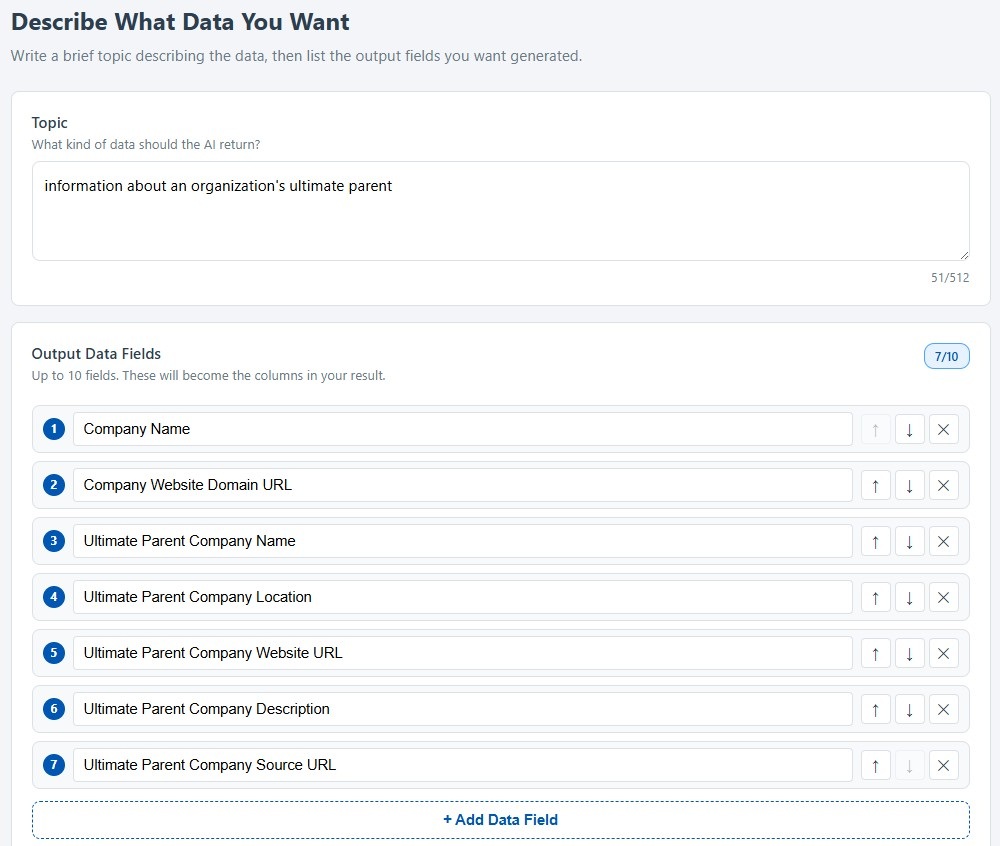
The workflow is intentionally straightforward. You define the data you want in plain language, specify the fields you want returned, test the result with a sample lookup value, and then use that definition to enrich an existing dataset.
Describe the Topic
Tell the wizard what kind of external data you want to retrieve.
Define Output Fields
Create the columns you want returned, such as website, address, description, or market data.
Test Interactively
Enter a sample lookup value and review the generated results before using them at scale.
Append to a Dataset
Load the saved definition in batch mode and append the custom fields to every row in a file.
This approach turns external data retrieval into a repeatable, reusable enrichment process. Instead of manually researching records one at a time, you create a definition once and apply it to a dataset.
Example: Custom Data About Public Companies
Consider a simple example: you have a file of public company names, and you want to append custom external data to each record. You might define your topic as:
Then you can define the output fields you want to retrieve. For example:
- Website — the company's official website
- Headquarters Address — the company's headquarters location
- Description — a concise description of the company
- Top Selling Product — a key product or offering associated with the company
- Market Cap — market capitalization information for public companies
After defining these fields, you can test the configuration using a lookup value such as Microsoft. The wizard retrieves the requested fields and displays the results so you can review whether the structure and content match your needs.
Interactive Testing Before Batch Processing
One of the most important parts of the workflow is the ability to test before running a larger enrichment job. You can enter a single lookup value, run the custom definition, and inspect the results immediately.
This helps answer practical questions before you process a file:
- Are the output fields named clearly?
- Is the topic description specific enough?
- Are the returned values useful for the business purpose?
- Should any fields be added, removed, or renamed?
- Is the data ready to be appended to a larger file?
Once the configuration returns the kind of data you want, you can save it as a reusable custom data definition.
Save the Custom Data Configuration
After the custom definition has been tested, it can be saved for future use. This is what turns a one-time interactive query into a reusable enrichment asset.
A saved configuration preserves the key parts of the definition:
- The topic or subject area being researched
- The custom output fields to retrieve
- The structure of the returned data
- The reusable configuration name
In the public company example, the saved configuration might be named Data About Public Companies. That saved definition can then be loaded from the Data Enrichment Wizard and applied to a file.
Append Custom External Data to Existing CSV and TSV Files
Once the custom data definition is saved, the next step is batch enrichment. The Data Enrichment Wizard lets you upload an existing CSV or TSV file, select the column that contains the lookup values, and append the custom output fields to each row.
For example, your input file may contain a simple list of company names:
NVIDIA
Amazon
Apple
Salesforce
After enrichment, the output file contains the original values plus the custom fields you defined. The original data remains intact, and the new external data is appended as additional columns.
| Original Input | Appended Custom Fields | Result |
|---|---|---|
| Company name | Website, headquarters address, description, top product, market cap | A richer company dataset ready for analysis, CRM import, or operational use |
| Customer or prospect list | Business intelligence, classification, market details, research fields | More complete records for sales, marketing, and analytics workflows |
| Research dataset | Custom attributes defined by the user | A purpose-built dataset created from internal records plus external intelligence |
Why Custom Definitions Matter
Traditional enrichment tools often require users to choose from a fixed set of fields. That can be useful, but it can also be limiting. Business users frequently need data that is specific to a use case, industry, workflow, customer segment, or research objective.
Custom definitions make enrichment more flexible. Instead of asking, "Which predefined API gets closest to what I need?" users can ask, "What data do I actually want to append to this file?"
Customizable
Define the topic and output fields based on the exact business question or dataset need.
Reusable
Save configurations and apply them again to similar datasets without redefining the fields.
No-Code
Use browser-based tools to define, test, and run enrichment jobs without writing code.
Operational
Download enriched CSV or TSV output and load it into spreadsheets, databases, CRMs, analytics tools, or downstream workflows.
Useful Business Scenarios
The ability to define and append custom external data can support many different business functions. Examples include:
- Sales intelligence: append company summaries, websites, executives, products, and market signals to prospect lists.
- Marketing segmentation: enrich account files with attributes that help identify better target audiences.
- Vendor analysis: add external company information to supplier lists for review, research, or classification.
- Investment research: append custom public company fields to watchlists or market datasets.
- Competitive analysis: build datasets containing product, market, positioning, or competitor-related attributes.
- Data preparation: create richer input data for analytics, dashboards, AI workflows, or operational systems.
Because the output fields are user-defined, the same workflow can be adapted across many different industries and departments.
From Better Data to Better Data ROI
Internal data becomes more useful when it is complete, current, consistent, and enriched with relevant external context. A simple file of company names can become a richer business asset when it includes websites, descriptions, locations, product information, market data, and other attributes that help users make better decisions.
This is the core value of the Custom Data Wizard and Data Enrichment Wizard working together: they help organizations increase the value of the datasets they already have.
- Start with existing internal data such as a CSV or TSV file.
- Define the external data that would make it more valuable.
- Test the definition interactively using sample lookup values.
- Save the configuration for reuse.
- Append the custom fields to every record in the dataset.
- Use the enriched results in Excel, Google Sheets, CRM systems, analytics tools, databases, or AI workflows.
APIs, Interactive Tools, and Batch Workflows
Interzoid is first and foremost an API platform, but not every user wants to start with code. The Custom Data Wizard and Data Enrichment Wizard provide a practical bridge between interactive exploration and operational data workflows.
Users can begin by defining and testing data interactively. Once the desired data structure is clear, they can move into batch processing by applying the saved definition to a file. From there, the same concept can support broader workflows, including API-driven integrations and recurring enrichment processes.
Interactive
Define and test custom data retrieval using sample lookup values before processing a file.
Batch
Upload CSV or TSV datasets and append custom output fields to every record.
API-Ready
Use Interzoid's API platform to operationalize data quality and enrichment workflows.
Getting Started
To try this workflow, start with a simple use case. Choose a dataset that contains lookup values, such as company names, domains, products, people, locations, or other entities. Then define the external fields that would make that dataset more useful.
- Register for an Interzoid API key.
- Open the Custom Data Wizard / Interactive Data Client.
- Describe the topic or type of data you want to retrieve.
- Define the output fields you want returned.
- Test the definition with a sample lookup value.
- Save the custom data configuration.
- Open the Data Enrichment Wizard and load the saved custom definition.
- Upload your CSV or TSV file, select the lookup column, run the enrichment, and save the results.
Custom Data Wizard | Data Enrichment Wizard Documentation | Interzoid API Directory
The ability to create custom external data definitions and append them to existing datasets changes how organizations can think about enrichment. Instead of being limited to fixed fields or manual research, teams can define exactly what they need, test it, save it, and apply it to real datasets in a few easy steps.
Whether the goal is sales intelligence, marketing segmentation, research, analytics readiness, operational improvement, or AI preparation, Interzoid makes it easier to turn existing data into a more complete and valuable business asset.
Better data leads to better decisions, better workflows, and better ROI from the systems and datasets organizations already use every day.
Try the Custom Data Wizard | Launch the Data Enrichment Wizard | Get an API Key